How to add your booking calendar to your own website

If you already have your own website, you can show your live DoggyDesk booking calendar on it. Visitors see your real availability, pick their dates and send you a booking request without leaving your site, and you spend less time answering messages about which dates are free.
Before you start
Copy your embed code
- Open the Your Website tab. On a computer it is one of the tabs along the top of your dashboard. On a phone it is under More.
- Choose Boarding or Walking. Each service has its own calendar and its own code.
- Press Copy embed code. The code is copied, ready to paste. That is the whole install: there is nothing else to set up.
- Press Preview your calendar. This shows your real calendar exactly as visitors to your website will see it.
Paste it into your website
Paste the code wherever you want the calendar to appear, for example on your booking or contact page.
- WordPress: add a Custom HTML block and paste the code in.
- Squarespace: add a Code block and paste the code in.
- Wix: choose Add Elements, then Embed Code, then Embed HTML, and paste the code in.
- Any other website: paste it into the page's HTML wherever the calendar should sit.
If you offer boarding and walks, you can add both calendars, for example one on your boarding page and one on your dog walking page.
What your visitors see
Your website shows the calendars you set up on your dashboard: a separate one for dog sitting and one for dog walking. Here they are as you see them when you set your availability:
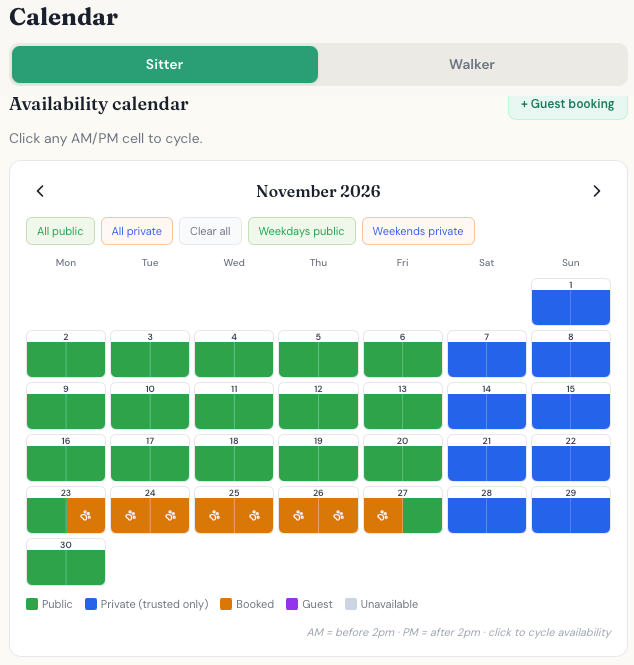
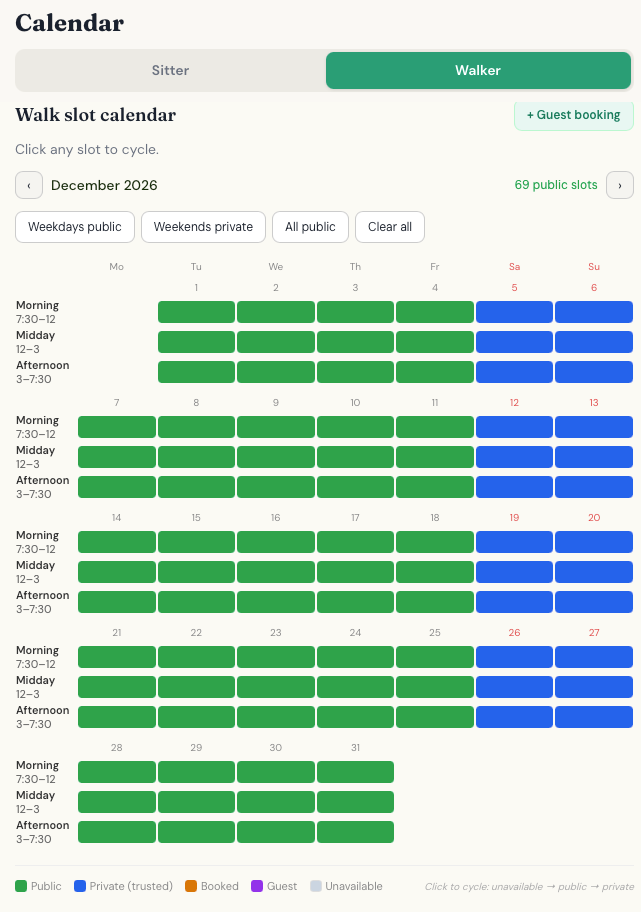
Visitors to your website see the same days in a simpler view: the days they can book stand out, and everything else is greyed out. Your private days only open up for clients whose account is set to “Trusted” status.
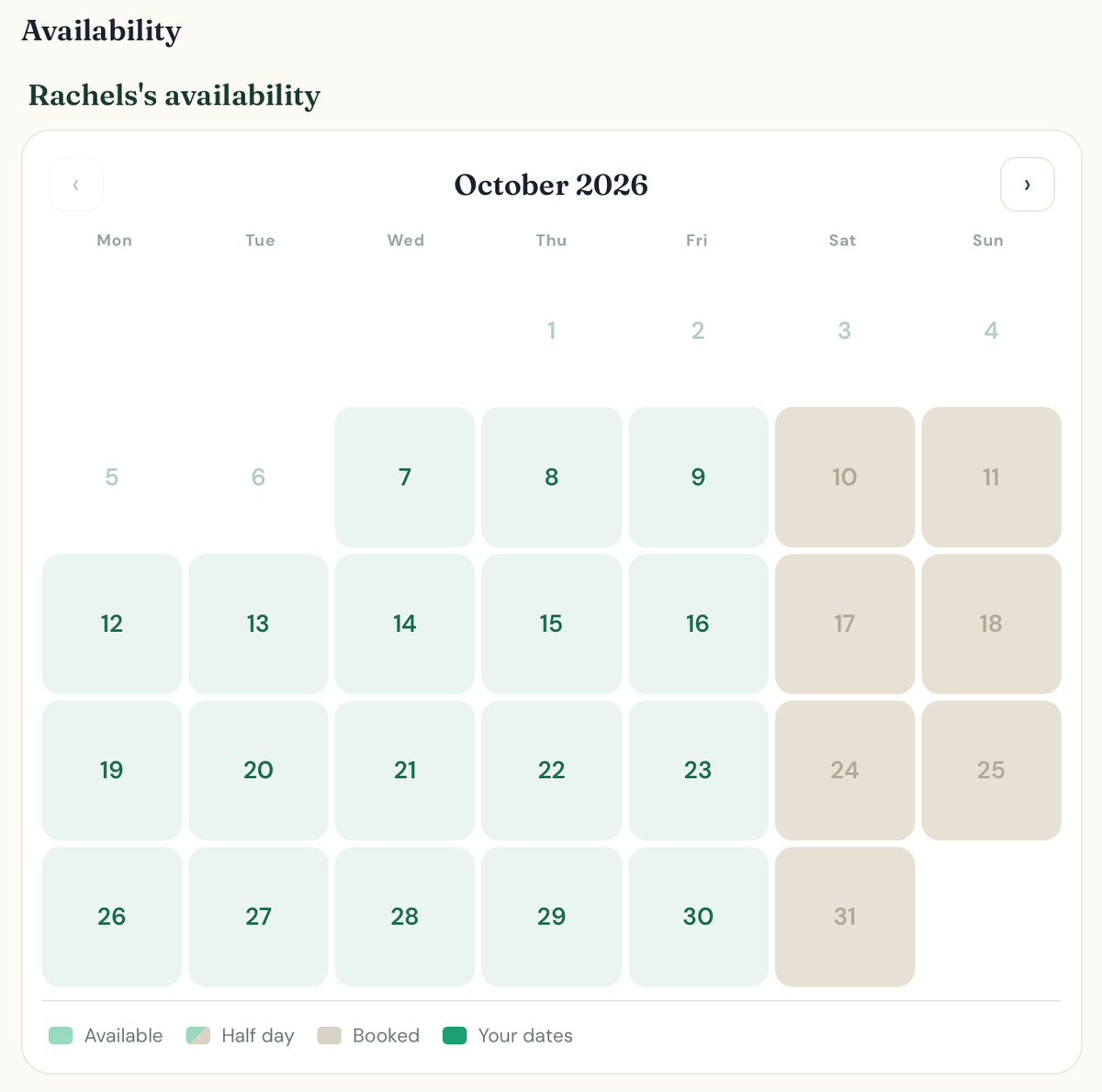
- Your live calendar, showing the dates they can book.
- To book, they sign in or create a free DoggyDesk account. Your prices show once they are signed in.
- Inside your website, they sign in with an email address and password. Google and Apple sign-in are not available inside an embedded calendar.
- Under the calendar, a small line reads “Booking calendar by The DoggyDesk”.
If you pause your bookings, the calendar on your website tells visitors it is not active right now and asks them to contact you directly.
If the calendar does not appear
- Check the preview first. If Preview your calendar works on your dashboard, your calendar is fine and the problem is on the website side.
- Use an HTML or code block. If you paste into a normal text paragraph, the code shows as words instead of a calendar.
- Check your plan. Some website builders remove pasted code when you save, unless you are on a paid plan.
- Still stuck? Email us a link to the page at [email protected] and we will take a look.
Questions and answers
Does it cost anything to add my calendar to my website?
No. Adding your calendar to your website is included, with no monthly fee.
Do bookings from my website work differently?
No. They arrive in your Requests tab and work exactly like any other booking.
Can I show both my boarding and my walking calendars?
Yes. Each service has its own code, so you can add one or both to your website.
Why can my clients not sign in with Google or Apple on my website?
Google and Apple do not allow their sign-in pages inside another website. Clients can sign in with their email address and password instead.