Add existing bookings you have with Guest Booking Feature

If your bookings live in a paper diary, a message thread or a spreadsheet, you can add them to your calendar in a few minutes with guest bookings. Your clients do not need an account, and you stay in control of what they are sent.
Add a guest booking
Open the Calendar tab and press + Guest booking, at the top right of your calendar. The green + button also has a Guest booking option. First choose Sitter or Walker at the top, depending on whether you are adding a stay or a walk.
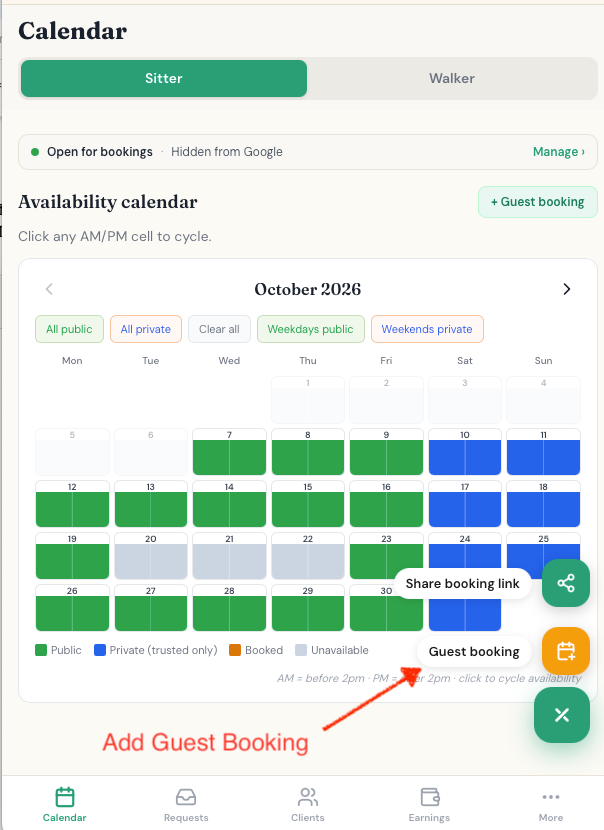
For a stay: tap the drop-off day, then the pick-up day, and choose Before 2pm or After 2pm for each. Add your client’s first name, last name and UK mobile number, and their dog’s name if you like.
For a walk: pick the day and the slot, then add the walk’s start time, how long it lasts and the agreed price.
For a stay, the price is worked out from your nightly rate. If you agreed something different, such as a mates’ rate, type the agreed total instead.
You then see a review screen. Nothing is saved until you press Confirm booking.
Tell your client
After you confirm, a message is already written for you. It gives your client the dates and the price, with a link to a page showing all the details. Press Share to send it by text, email, WhatsApp or however you normally talk to them.
We never email or text your guest clients ourselves. You send the message, so it comes from you.
Your client can open the link without an account and add the booking to their calendar. If they like, they can also create a free account to keep it with all their future bookings.
Payments
Card payments are optional for guests. Cash and bank transfer work exactly as normal, and you press Mark paid once you have been paid.
If you take card payments, you can add a card payment link or your bank details to the message, or send them later. In Earnings, open Bookings & invoicing and press Other ways to pay on any unpaid booking. It writes a message with a secure card link, your bank details, or both. The card link stays live for a few days after you share it, and you can send a fresh one in a tap. To set up card payments, see control your own card payments.
Your bank details are kept on your own device only, never on our servers, so you will need to add them once on each device you use.
On your calendar
Guest bookings show in purple, labelled Guest, and use up the same half-days as any other booking. If your client later adds the booking to their own account, it turns amber like an online booking. Guest clients also appear in your Clients tab with a Guest label, where you can share their booking link again.
Good to know
- You can add bookings from today onwards, up to 12 months ahead. Past dates cannot be filled in.
- Each guest booking covers one stay or one walk.
- You can add up to 20 guest bookings a day.
- If you ever need to cancel, a card appears with your client’s number and a ready-written message. Press Text the cancellation to send it.
Questions and answers
Do my clients need an account?
No. They can see the booking and add it to their calendar from the link without an account. They can create a free account if they want to keep it.
Do guests get emails or texts from The DoggyDesk?
No. You send the message yourself, so it comes from you.
Can I add bookings in the past?
No. You can add bookings from today onwards, up to 12 months ahead.